
Our blog
The latest news from our team at Clever Dynamics

End customer and supplier confusion: Setting the Default Document Language Code Across Your Company
In multi-language Business Central environments, keeping documents consistent can be a challenge. Reports are generated using each user’s language settings, which can lead to confusion for customers and suppliers. With Version 28, you can now set a default language code across your company to standardise document output.
How to set a company-wide default language in Business Central
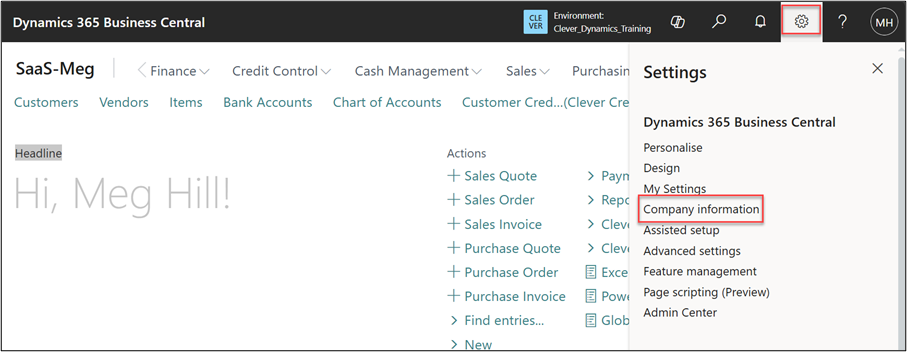
Start by going to the Company Information page, either by searching for it or clicking the cog icon in the top right and selecting the fourth option:
:
Next, navigate to the Communication FastTab and populate the Default Language Code field.
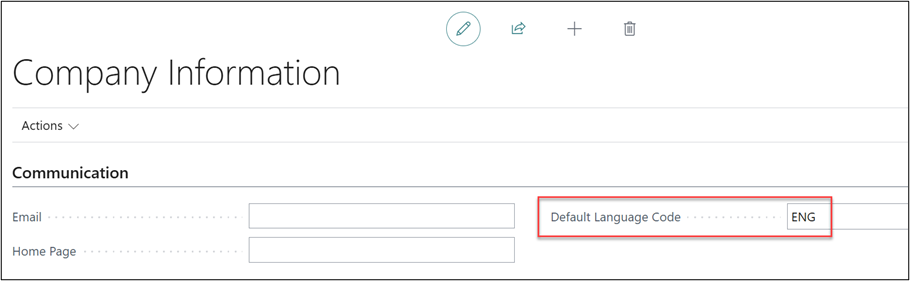
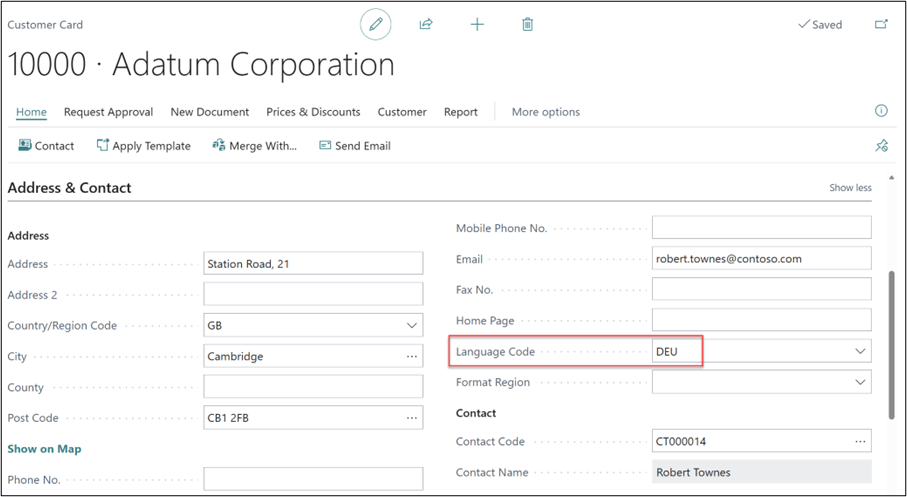
Please note that this field is company-wide and will impact all users. However, the language code can be defined against Customer and Vendor Cards, within the Address & Contact FastTab, should they have specific language requirements.
Watch out for more tips like this on our Blog and if you have any questions for us, please get in touch
COMPILED ON